Showing posts with label Tip and Technic. Show all posts

Tuesday, 30 July 2013

วิธี ตั้ง Task Scheduler


alarmcom มาทำคอมพิวเตอร์ให้เป็นนาฬิกาปลุกกันเถอะ!
เพื่อนๆ ชาวเทพเคยประสบปัญหาในการเล่นคอมพิวเตอร์หรือแม้กระทั่งทำงานบนคอมพิวเตอร์จนลืมเวลา ลืมโลกภายนอกหรือเปล่าครับ? วันนี้เรามีวิธีทำคอมพิวเตอร์ให้กลายเป็นนาฬิกาปลุกมานำเสนอ แบบไม่ใช้สแตนด์อิน ไม่ต้องลงโปรแกรมเพิ่ม  ทำได้อย่างไร? ลองมาดูกันเลยครับ
ขั้นตอนแรกให้เปิดโปรแกรม Task Scheduler ก่อน โดยเจ้าโปรแกรม Task Scheduler นั้นจะอยู่ใน Control Panel ในส่วนของ Administrative Tools ตามในรูปด้านล่าง
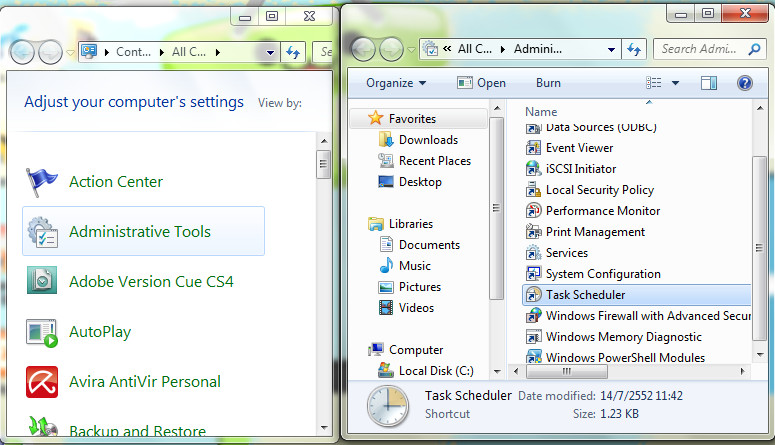
pic01 600x344 มาทำคอมพิวเตอร์ให้เป็นนาฬิกาปลุกกันเถอะ!
อันที่จริงแล้วโปรแกรม Task Scheduler นั้นไม่ใช่โปรแกรมนาฬิกาปลุกนะครับ แต่เป็นโปรแกรมสำหรับสั่งการให้Windowsโหลดโปรแกรมต่างๆ ขึ้นอัตโนมัติเมื่อถึงเวลาที่กำหนด หรือเกิดเหตุการณ์อะไรบางอย่างขึ้น ตามที่ได้ตั้งค่าไว้ครับ  ด้วยความสามารถดังกล่าว เราสามารถทำให้มันปลุกเราได้ตามเวลาที่เราต้องการได้
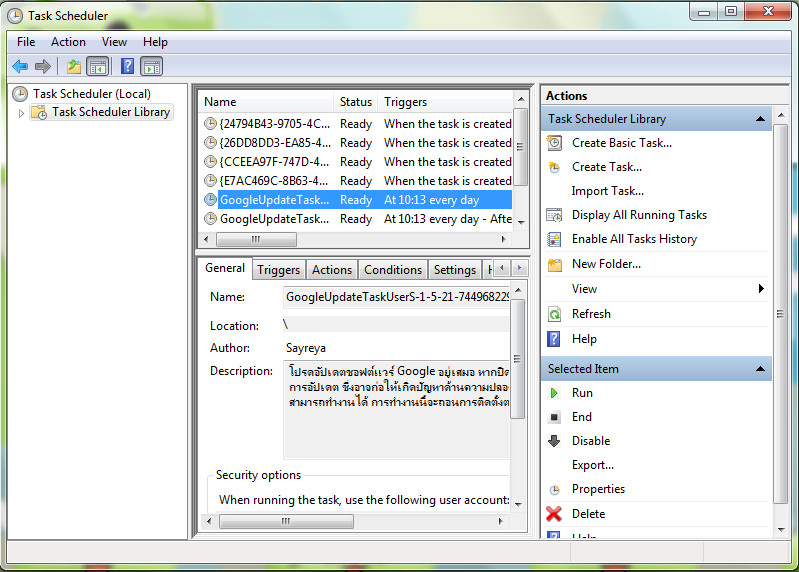
สำหรับ Windows 7 นั้น โปรแกรม Task Scheduler จะมีหน้าตาเหมือนรูปด้านล่าง
pic02 600x429 มาทำคอมพิวเตอร์ให้เป็นนาฬิกาปลุกกันเถอะ!
หน้าต่างโปรแกรมจะแสดงรายชื่อคำสั่งที่Windowsจะเรียกขึ้นมาใช้อัตโนมัติ โดยคอมพิวเตอร์แต่ละเครื่องจะมีจำนวนคำสั่งแตกต่างกันออกไปขึ้นอยู่กับโปรแกรมที่ติดตั้งอยู่ในเครื่องครับ
จากนั้นให้เราสร้างคำสั่งขึ้นมาใหม่ โดยการคลิ๊กที่ Create Basic Task ที่ด้านขวาในแถบของ Action
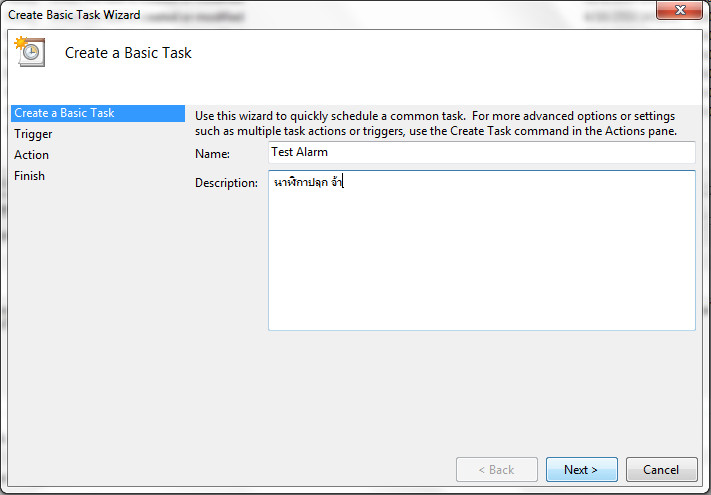
จะปรากฏหน้าต่างWizardตัวช่วยในการสร้างคำสั่งดังภาพ  ในขั้นตอนนี้ให้เราพิมพ์ชื่อของงานที่เราจะสั่ง และรายละเอียดต่างๆ ที่เราต้องการเพื่อให้เข้าใจง่าย เมื่อพิมพ์เสร็จแล้วคลิ๊กปุ่ม Next ตามภาพ
pic05 600x417 มาทำคอมพิวเตอร์ให้เป็นนาฬิกาปลุกกันเถอะ!
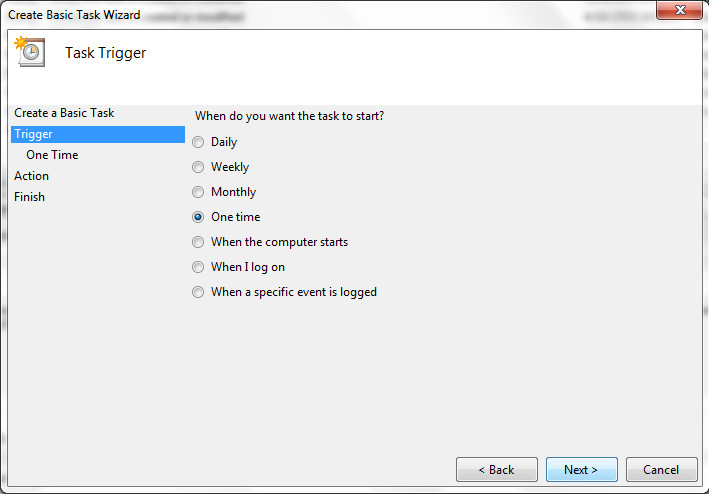
จากนั้นจะเข้าสู่หน้าจอ Trigger ซึ่งจะเป็นตัวกำหนดรูปแบบในการปลุก ซึ่งสามารถเลือกได้ทั้งแบบทุกวัน(Daily) ทุกสัปดาห์(Weekly) ทุกเดือน(Monthly) ให้ทำการปลุกแค่ครั้งเดียว(One Time) และรูปแบบอื่นๆ ตามที่เราต้องการ  ซึ่งในตัวอย่างขอเลือกแบบ One Time
pic06 600x418 มาทำคอมพิวเตอร์ให้เป็นนาฬิกาปลุกกันเถอะ!
เมื่อเลือกรูปแบบในการปลุกแล้ว ต่อไปก็ต้องเลือกเวลาที่จะให้ทำการปลุก ซึ่งเราสามารถเลือกได้ว่าจะให้ปลุกวันไหน  เวลาใดได้
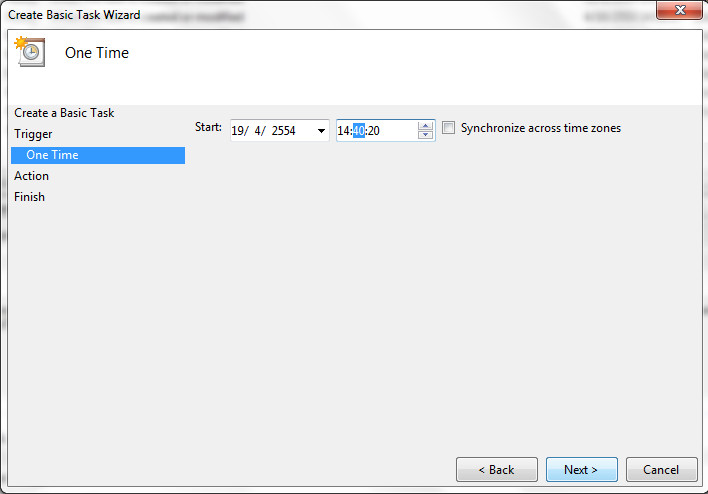
pic07 600x418 มาทำคอมพิวเตอร์ให้เป็นนาฬิกาปลุกกันเถอะ!
จากนั้นจะเข้าสู่หน้าจอ Action ซึ่งเป็นตัวกำหนดว่า เมื่อถึงเวลาที่กำหนดให้นาฬิกาปลุกทำงาน จะให้นาฬิกาปลุกของเราทำอะไร โดยสามารถเลือกได้ทั้งให้เปิดโปรแกรมขึ้นมา(Start a program) ให้ส่งอีเมล์(Send e-mail) หรือแค่แสดงข้อความเตือน(Display Message)
โดยนาฬิกาปลุกของเรานั้นต้องการให้มันเล่นเสียงจากไฟล์เสียงที่มีอยู่ในเครื่องของเรา ให้เราเลือกStart a program
เมื่อเราเลือกที่จะให้มันเปิดโปรแกรมแล้ว ต่อไปจะปรากฏหน้าจอให้เราเลือกว่าจะเปิดโปรแกรมอะไร โดยเราจะพิมพ์ชื่อไปเลย หรือจะคลิ๊กที่ปุ่ม Browse เพื่อเลือกหาไฟล์ที่เราต้องการได้ โดยสามารถคลิ๊กเลือกไฟล์เสียงของเราได้ทันทีโดยไม่ต้องตั้งค่าใดๆเพิ่มเติม
pic08 600x420 มาทำคอมพิวเตอร์ให้เป็นนาฬิกาปลุกกันเถอะ!
และสุดท้ายจะเป็นข้อมูลสรุปของคำสั่งที่เราสร้างขึ้นมาใหม่ ให้คลิ๊กปุ่ม Finish เพื่อเสร็จสิ้นการตั้งค่านาฬิกาปลุกของเรา และกลับไปยังโปรแกรม Task Scheduler
pic09 600x418 มาทำคอมพิวเตอร์ให้เป็นนาฬิกาปลุกกันเถอะ!
ในตอนนี้จะมีคำสั่งที่เราสร้างขึ้นมาใหม่อยู่ในรายชื่อของ Task Scheduler โดยเราสามารถเข้าไปเปลี่ยนแปลงการตั้งค่าต่างๆ ได้ถ้าเราต้องการ
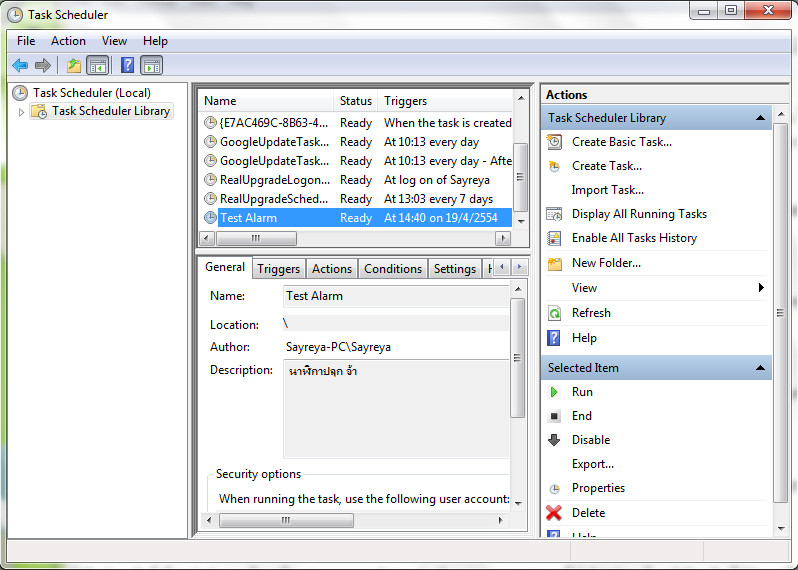
pic03 600x428 มาทำคอมพิวเตอร์ให้เป็นนาฬิกาปลุกกันเถอะ!
เราสามารถปิดโปรแกรม Task Scheduler ได้ และรอจนกว่าจะถึงเวลาที่เราตั้งไว้ให้นาฬิกาปลุกทำงาน
เมื่อถึงเวลาที่กำหนด Windows จะเรียกไฟล์เสียงที่เราตั้งไว้ขึ้นมาเล่นผ่านทางโปรแกรมฟังเพลงที่เราใช้ตามปกติ คราวนี้อยากฟังต่อหรือปิดไปก็ตามศรัทธา
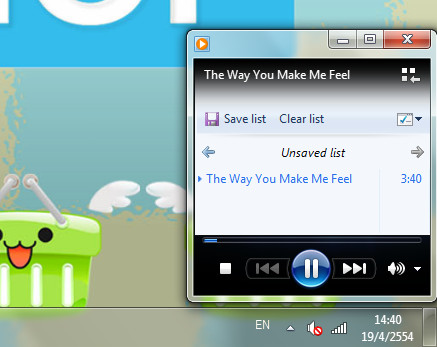
pic10 มาทำคอมพิวเตอร์ให้เป็นนาฬิกาปลุกกันเถอะ!
ก็เป็นอันเสร็จสิ้นไปแล้วกับการตั้งนาฬิกาปลุกบนคอมพิวเตอร์เครื่องเก่งของเรา  อยากให้เสียงดังแค่ไหนก็เปิดเสียงให้ดังแค่นั้น  คราวนี้ไม่อยู่หน้าคอมจนผิดนัดแน่นอน
หรือใครอยากจะทำคอมให้เป็นนาฬิกาปลุกตอนเช้าก็ไม่มีใครว่า แต่ระวังค่าไฟจะขึ้นปรู๊ดดด…ไม่รู้ตัวกันนะจ๊ะ  เพราะTask Scheduler ทำงานเฉพาะตอนคอมทำงานเท่านั้น ตอนคอมดับมันไม่ปลุกนะจ๊ะ เดี๋ยวจะหาว่าไม่เตือน…

Tuesday, 11 May 2010

Google Nexus One Gets Dismantled Google's Smartphone gets the Teardown Treatment – Nexus One's Internals Exposed

Having offered you some pretty extensive coverage of the Google Nexus
One smart phone way back before it was officially unveiled this week "
including offering you a full low down as to the Nexus One s key
features and specifications " we felt unable to resist offer up an
insight as to what exactly the Nexus One consists of as the device gains
the teardown treatment.
As you ll doubtless already know, the Google Nexus One, which is
manufactures by none other than HTC (who have, incidentally, just
officially announced their new budget smartphone, the HTC Smart), is
powered by a 1GHz Qualcomm QSD 8250 processor, runs the Android 2.1
(ร�clair) OS and sports a 3.7 � WVGA (800 x 480) widescreen AMOLED
touchscreen display but what does the Nexus One actually comprise of?
Thanks to the guys at iFixit (duly credited below) we can now get an
insight as they have, quite literally, torn the fella apart as can be
seen below.
If you re looking for a little more insight into the Nexus One, here s
some of our previous coverage concerning what s widely accepted to be
the strongest competition the iPhone has had to contend with to
date:Google Nexus One Specifications Features Now Official Nexus One
Videos Full Low Down " A True iPhone Beater Vodafone UK Google Nexus
One Availability Confirmed Nexus One Releasing in Europe in a Few
Months? Nexus One Pricing and Rates Leaked Google Phone Will Cost $530
Unlocked, $80 Monthly T-Mobile Rate Google Nexus One Full Specs
Features Revealed Nexus One to be Available Starting January 5 on a
Limited Basis Google Nexus One Android Phone Revealed Pictures Specs
Already Available; Nexus One to Arrive in January 2010? Unboxing the
Google Nexus One Smartphone Android 2.1 Powered Google Phone Gets
Leaked on Video
Teardown Images Courtesy of iFixit

Tuesday, 24 March 2009

SteelSeries Iron.Lady Laser Mouse & Mat Pro Gaming Set For Female Gamers

SteelSeries have announced their new SteelSeries Iron.Lady set for
female pro gamers which consists of a laser mouse, a mat and a wristband
which, according to Bruce Hawver, SteelSeries’ Chief Executive
Officer, serves to 'recognize and support the growing population of
female pro-gamers'.

Billed as being the result of more than 15 months of extensive research
in ergonomics, motion, hand grip and styles of play by pro gamers around
the world' the SteelSeries Iron.Lady pro female gaming mouse set comes
with extreme 1,000Hz precision sensor offering 40,000 samples per second
and, by way of an endorsement, was used by the team that won the ESL
Extreme Masters II Counter-Strike tournament at CeBIT in Hannover, Germany.

SteelSeries Iron.Lady Laser Mouse Key Features:

40.000 samples per second (SPS) for unbeatable tracking
Built in LCD display to help set CPI values on-the-fly
Counts per inch: 1 - 3.200ย (one CPI Steps)
Acceleration: 20 G
Sensor data path: True 16 bit
Lift distance: 1,8 mm (0,07 inch)
Buttons: 5
Cord: 2 m / 6,5 ft (braided to improve durability)
Polling: 1000 Hz
Gold-plated USB connector
Measurements: 130 x 83 x 36 mm / 5,1 x 3,3 x 1,4 in
CPI high/low indicator
SteelSeries FreeMove Technology
Large pressure points that reduce friction for optimized glide
Driverless, plug-and-play feature for LAN gamers


Available in either white or pink (not that this product is trying in
any way to pander to stereotypes) the SteelSeries Iron.Lady Laser Mouse
retails for just shy of $96.

SteelSeries

Friday, 13 March 2009

High Voltage Software Quantum3 graphics engine For Nintendo Wii To Offer ‘Xbox 360 Quality Graphics’ [Will Harness True Technical Capabilities of Nintendo's Wii]

'Most of the games on [the] Wii look like crap' according to High
Voltage’s Eric Nofsinger who, apart from not mincing his words,
belives that third-party developers need to 'step up to the plate and
deliver [to show that] the Wii platform is capable of a lot more than
what consumers have seen so far' and, to that end, he belives that the
company's new iteration of their Quantum3 graphics engine will serve to
'raise a new bar' as far as graphics quality on the Wii is concerned.

Announcing their new iteration of their proprietary Quantum3 graphics
engine developed specifically for the Wii, Kerry Ganofsky, High Voltage
Software's CEO firmly believes that software developers have been all
too keen to cash in on the Wii's phenomenal success whilst concentrating
on the Wii's unique style of gameplay as opposed to what can actually be
achieved by the console. 'We think it’s a real shame that
publishers and developers aren’t taking advantage of the technical
possibilities of the Wii platform. Most Wii games don’t even look
as good as the later day PS2 titles and that’s a real slap in the
face to consumers,' he recently stated in an exclusive IGN interview.
'We believe that third-party developers need to step up to the plate and
deliver. The Wii platform is capable of a lot more than what consumers
have seen so far. We’re hoping to raise a new bar.'

The Quantum3 engine, which has been in continued development for 15
years, and is regarded by many as being one of the most powerful
graphics engines in the industry, will purportedly bring a host of
graphical enhancements to Nintendo Wii games including real-time normal
mapping, reflection and refraction, post process full screen effects,
real-time shadows, projected lights and textures, specularity and
fresnel effects, emissive and iridescent materials, interactive water
and morphing all running with 'a rock solid frame rate'.


Announcing that they have five Nintendo Wii titles planned for release
in the near future, all of which utilise the Quantum3 engine, with one
already named as being The Conduit, a sci-fi shooter, we await further
news with baited breath as will anyone with a Wii who will surly welcome
a new breed of games that serve to push the boundaries (and show the
true capabilities) of Nintendo's latest console - and the fact the HVS
have been behind titles such as Tom Clancy’s Ghost Recon Advanced
Warfighter 2 can only add to the level of anticipation.

PCWorld

Monday, 2 March 2009

Phoenix Technologies Working with Fujitsu To Bring Failsafe Remote Drive Tracking/Disabling/Erasing to Fujitsu’s FDE Hard Drives

Phoenix Technologies have announced that they are collaborating with
Fujitsu with view to bringing remote disk control and disk data
protection to devices employing Fujitsu's new full disk encryption (FDE)
SATA hard disk drives that will include the facility to track, remotely
disable and even remotely erase data from HDD units should your
laptop/notebook be stolen or otherwise fall into the wrong hands.

Being developed specifically with Fujitsu’s new full disk
encryption (FDE) 2.5″ 7,200rpm SATA hard disk drives, Phoenix
Technologies' vice president, Surendra Arora, announced their
collaboration with Fujitsu stating that 'Phoenix&'s FailSafe
theft-deterrence service will allow the PC owner to track, remotely
disable and securely erase the Fujitsu disk drive,' adding that, '�In
the event of laptop theft, if the FailSafe agent pre-installed on the
Fujitsu FDE HDD product is removed by the computer/data thief, the
authorized owner will be able to remotely re-install the FailSafe agent
in the compromised system and take further steps to ensure protection as
well as recovery of the data on the laptop'.

These further steps range from the remote enabling of protection and
drive encryption to the last resort measure of remotely 'killing'
sensitive data.

Quite how such actions could be enacted remotely is, somewhat
understandably, not detailed in Phoenix Technologies' press release, but
in an age where the loss of sensitive data can have grave political and
financial repercussions we don't doubt that such technology will gain
substantial interest not only from the corporate sector but also those
who increasingly use their mobile computing devices to log and document
everything from bank account details and logins their every move.

Phoenix Technologies

Thursday, 19 February 2009

Samsung SC9540 Silencio Halo Styled Bagless Vacuum Cleaner with Nano Technology

Samsung’s SC9540 Silencio bagless, multi-chamber vacuum cleaner
seemingly offers a design that bares more than a passing resemblance to
the helmets worn by the characters featured in the Halo franchise of
console/computer games.

Whether you agree that the design seems somewhat '�Haloesque' or not,
the Samsung SC9540 Silencio is certainly a rather mean looking device
that sports a bagless, multi-chamber suction system paired with HEPA 13
filtration capable of removing 99.95% of micro particles (such as dust
and allergens) and Samsung's unique Silver Nano technology which,
according to Samsung, '�applies the anti bacterial properties of silver
to the dust bin, pre motor filter and post motor filter of the vacuum
cleaner, preventing the build up of bacteria and odours and ensuring
that the air emitted is odour free and bacteria free'. Unlike this
previously featured Germ Busting Vacuum Cleaner, however, it does not
come with integrated UC-V.


As well as nano technology, Samsung SC9540 Silencio also offers 360 air
watts of suction power whilst only producing a mere 73dB of noise and
what's termed as an '�infrared remote handle' which allows you to vary
suction power - though an auto suction mode is available - as well as
switch the Silencio on and off without having bend down (bending down
being such an apparent inconvenience) complete with an integrated blue
LED display.

We've never come quite as close as this to considering replacing our
trusty Dyson.

[Via OhGizmo]

Monday, 6 August 2007

Hiding a cell in Excel

Have you ever found yourself wanting to hide a single cell in Excel so the content is not visible? Hiding a column or row is easy enough (Right-click on the header and choose Hide). But Excel does not provide an easy way of hiding a single cell.
The answer is to format the cell so that its content is not displayed.
To hide a single cell:
1. Select the cell
2. Format menu, Cells, Number tab
3. Select the Custom category
4. In the Type field, replace the content with ;;; (three semicolons)
5. Click on OK
Note that you can still see the cell's content in the Formula Bar, just not in the worksheet.
If you ever wanted to display the cell's content again, just apply one of the regular Excel formats to the cell.

Double Quick!


When you click the Underline button on the Formatting toolbar, Excel underlines the data in the selected cell or range. By default, that underline is a single line. If you need a double underline, you probably select the Cells command from the Format menu, click the Font tab, and then choose Double from the Underline control. However, that's a permanent change. Excel will continue to display a double underline until you change it back, which is probably inconvenient for most of us.
To quickly apply a double underline without changing any Excel defaults, simply hold down the Shift key as you click the Underline button.

Integrated Biometric Security Hardware

Biometric security hardware just arrived at a new level--factory integration. Some computer manufactuers offer new notebook models that feature biometric fingerprint scanners. If executed properly, fingerprint scanning becomes the ultimate password because fingerprints are unique and you can't forget them. Some of these scanners can even log you on to Active Directory based domains; and these create passwords you can't forget and don't have to constantly change.

Change the Command Prompt Window

Need more lines in that Command Prompt window? You can change the window by typing in a Mode command. For example, if you need 50 lines in the window (as an example), type
mode con lines=50
and press Enter. You'll now have 50 lines available for use. If you'd like to change the window width, type (for example)
mode con cols=90
and press Enter.
When you close the window, the mode setting reverts to the default, so when you open the Command Prompt window again, it will use the default values.
To modify the default settings, right-click the Command Prompt shortcut and choose Properties. Click the Layout tab and enter a new size into the Window Size Height and Width spin boxes. Click OK to close the dialog box and record your changes.

Hiding Data


A while ago, we talked a bit about protecting and hiding data. However, using a sheet's Protection feature to hide data is overkill if you just want to hide a cell or two. For a quick hiding method, right-click the cell that contains data you don't want anyone else to see. Choose Format Cells from the context menu and select Custom from the Category control. Then, type three semicolons, as in
;;;
in the Type control, and click OK. Excel will hide the data in the newly formatted cell or range. However, you'll still be able to see the contents of the cell in the Formula bar.
To unhide the data, simply apply a different format.

Double DOS


I think I remember seeing a tip about running two MS-DOS commands sequentially from a single command line prompt. I don't see a way to do this. Am I mistaken about the tip, or is it possible to stack commands?"
You can stack commands at the command prompt. To see how this works, open a command prompt window, type
chkdsk & mem
and press Enter. This runs CHKDSK and then, when CHKDSK finishes, runs MEM.

Printing a List of Keyboard Shortcuts


If you're the kind of user who constantly uses keyboard shortcuts, you'll be thrilled to know that there is a method for printing a complete list of all available keyboard shortcuts in Word. There are quite a few steps, but the procedure is simple. Begin by choosing Tools, Macro, Macros to open the Macro dialog box. Choose Word Commands from the Macros In menu and type
ListCommands
in the Macro Name box. Click the Run button and click OK for Current Menu And Keyboard Settings in the resulting dialog box. You should see a Word document that contains all keyboard shortcuts, which you can then print normally by selecting File, Print.

Shapes Print with Unexpected Borders


If you print your PowerPoint slides with either the Grayscale or Pure Black & White options selected in the Print dialog box, you may find that objects you expected to be invisible print with a black outline.
For example, if you've used a rectangle the same color as the background to block out another object on the slide, the rectangle will show up as an unfilled but outlined rectangle on your printouts.
If you run into this, first try printing the problem page again, but deselect the options Grayscale and/or Pure Black & White. If that doesn't help, try customizing the way the object prints in Black and White View. Click Black And White on the View menu; PowerPoint displays your presentation as it will print it to a black and white printer. Right-click the object that you're having trouble with, choose Black And White from the context menu, then click White.
Verify that the object is displayed on screen the way you want to print. If not, try one of the other Black And White options.
Note that this affects ONLY the way PowerPoint prints your presentation to black and white printers. It won't affect what you get when you display the presentation as a screen show or print to a color printer.

Exporting Microsoft Internet Explorer 6 Favorites

How would you like to have all your Microsoft Internet Explorer 6 Favorites nicely organized on a local Web page? To do this, you run Microsoft Internet Explorer and choose FileImport and Export. When the Import/Export wizard opens, click Next. Click Export Favorites and then click Next.
This next page should display your Favorites folder. If you wish to choose another folder, this is the time to make your choice. Click Next to continue. You can now accept the default folder of My Documents and the filename, Bookmarks.htm, or you can select a new folder and type in a new name. Click Next to save the file and then click Finish to close the wizard.

A Quicker Restart

Every now and again, we get a reader asking us about faster restarts in Windows XP. They remembered that in Windows 95/98, holding down the Shift key while restarting got things done a lot quicker; and they wanted to know if this works in Windows XP.
While this worked in older versions of Windows, starting with Windows NT 4.0, this no longer worked. There really isn't a quicker way to shut down your Windows XP PC. If you hold down the Shift key during a restart, the computer will still go through the entire restart sequence.

Quick Fit

Excel columns have a default column width of 8.43 characters, or 64 pixels. That means many entries aren't completely visible. (If there's no data to the right of a long entry, Excel will display the entire entry.) You could change the column's width, but you might spend a lot of time guessing at the appropriate width to display everything.
You can make it easy on yourself by double-clicking the right border of a column's header cell (the gray cell at the top of the column). Doing so will automatically adjust the column's width to display the longest entry in that column.

HTML Mail in Outlook Express


E-mail doesn't have to be plain text anymore--if you use Outlook Express, you can send colorful HTML e-mail. To generate an HTML message, click Create Mail. When the New Message window opens, choose FormatRich Text (HTML). Outlook Express will open a new toolbar from which you can select text formats, colors, and fonts.
The only problem with sending HTML e-mail is that some e-mail clients only work with plain text. However, such clients are quickly becoming an endangered species, so most people can read the HTML e-mails.

Set the Current Priority


If you need to set the priority of a currently running application, open Task Manager (right-click a blank spot on the Taskbar and choose Task Manager) and click the Processes tab. Right-click the application and choose Set Priority. You can now set the new priority. Note that you will get a message warning you that the system may become unstable. We suggest you use this method only when absolutely necessary.

Export Information to Other Office Programs


It's always a good idea to save your important documents in a safe place, and that goes for Outlook items, too. Whether it's an e-mail folder, your Calendar, your Address Book, or Notes, you can export it to a file for safekeeping.
Click File, Import And Export. Choose Export To A File, then click Next. Choose which file type you want to create. If you're going to use your exported file in Microsoft Word, choose Comma Separated Values (Windows) or Tab Separated Values. There's also an option for Microsoft Excel. Click Next. Choose the folder or set of items you want to export, and click Next. Navigate to where you want the file saved, name it, then click OK. Click Finish.

Analytics and Statistic

Blog Archive